Showing posts with label photo editing. Show all posts

Thursday, June 28, 2012

The 365 Project: Week 25

Water droplets on a leaf
For this week on Picaboo, the theme was converting your photos into black and white.  The photo above made into their weekly blog post of the best of the week!

Kaylie playing in the driveway

Sailboat on the bay

Black and white photos are one of my favorite.  They add a sense of drama with the stark contrast and added details.  Not that there's anything wrong with color, it's just more interesting without sometimes!
Trail to the beach

Not everything looks better in black and white though.  I find the best subjects for black and white are people, pets/animals, and dramatic landscapes (you know, like those awesome black and white mountain scenes), and urban landscapes (brick looks freaking awesome in black and white).

Fresh picked blueberries from my garden
Now I know you can probably take photos already in black and white with most digital cameras and I use the feature too but they tend to turn out more of a muddy grey and need more post processing.  If you are more comfortable with using this then go ahead.  I prefer to take photos in color and then change them to black and white.  This allows me to keep ones in color that I don't particularly like in black in white and also like I mentioned, it saves on some post processing if I do convert them.  For this week's photos I converted some of them using Picmonkey, a free online photo editing site, and some using Windows Live Photo Gallery, about the most basic yet very helpful photo editing tool for us not-so-Photoshop-savvy people.

Lavender in bloom
A vine in my planter called Silver Falls

Once you've uploaded your photos and converted to black and white, you're going to need to do some tweaking.  If you don't then you are really amazing!  All you need to do is play with the basic photo tools: highlight, shadows and most importantly, contrast.  Just play with it till the details begin to really pop!

Tuesday, June 19, 2012

The 365 Project: Weeks 23 and 24

"Look Ma, I caught a grasshopper", seen on right
For week 23 Picaboo focused on turning everyday snapshots into portraits.  The above photo was also included in their blog post of the best photos of the week!

Playing on the beach

The main point of this week's challenge was to make your photos look more like professional photos without going through the fuss of owning a super fancy camera or hiring a photographer.  Anyone can take professional looking photos!  First off, you need your camera to be set to the right settings based on your current conditions.  Set your white balance to cloudy if it's cloudy, try to keep your ISO around 200, and try to stay away from harsh lighting such as direct sunlight if possible.  See the Picaboo tutorial with links for more on camera settings.

Watching the sunset

My little diva with her big sunglasses

Another thing to keep in mind is your background.  Try to avoid clutter such as the tv if indoors or telephone poles, cars etc if outdoors.  These sort of things can take away from your subject.  If they can't be avoided, then make sure your camera is focusing on your subject and only your subject so that the background will be blurry and out of focus.  Try to pose your subject naturally or allow them to just be themselves.  This tends to work best with young children and makes for some of the best shots I've gotten of my own daughter.
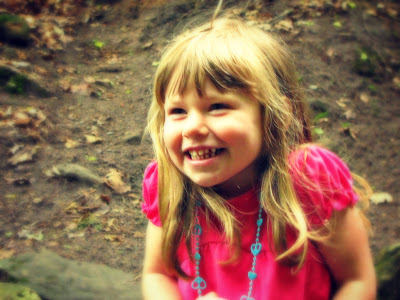
She looks a little mischievous...

Hey squirrel!

If you're photographing a person and they're looking at you, make sure to focus on the eyes, they are the most expressive part of the face and the most important thing to capture if you want a good photo of your subject looking at the camera.  Take note as well of how you're framing your subject.  Remember the rule of thirds and make it interesting with creative angles but most importantly tell a good story with your photo!
Sweet little chipmunk in the parking lot

For much of my post processing, I used Picmonkey.  It's free and it allows you to make some spectacular photos without having to buy a manual to learn how to use it.

A friend's dog shaking off after a dip in the lake

For week 24, the Picaboo challenge and theme was about capturing action!  This was a fun week since I have a very active toddler!  The above photo made it into Picaboo's blog with the best photos of the week as well!
From last summer, Kaylie racing through the park

For action shots, sports or kids and pets mode on your camera will be your friend.  This may be a running man icon or a child with a dog icon on your camera.  This automatically sets your camera for the best settings for action.  If you're more comfortable with manual, then have at it!

My mom's dog playing fetch

I didn't catch the ball in the frame, but that's what she's chasing

Be sure to focus on the face, blurry arms and legs are ok but not a blurry face.  Also try to pan the camera with the direction of the movement, this gets the sharpest images and gets that "action blur" in the process.
not entirely "action" but I liked the ripples behind this pretty mallard

A hawk landing in its nest

Kicking her ball around the yard
If your camera has a slight delay between pushing the button and it actually taking the photo then try to push the shutter a moment early and take lots of photos!  The beauty of digital is that you can delete the ones that didn't turn out.

Wednesday, May 30, 2012

The 365 Project: Week 21

Before, straight from camera

After, edited with Picmonkey: Eye tint, filter, dark edges and airbrushing

This week on Picaboo, the theme was editing pictures with Picmonkey.  Picmonkey is a free image editing host similar to Picnik, which is no longer available, and it's pretty awesome!

A nifty filter to make the color pop was used on this photo of swallowtails

The cross process filter makes the color pop and focal soften draws you to the bee

I'm not going to get all technical on how to edit your photos, since you can just check out the help section on Picmonkey's website or just fiddle around till you figure it out.  Besides the basic exposure edits, you can add textures, filters, focal soften, blemish removers among other facial edits, and add text and borders to name a few.

Focal soften and dark edges really draws your eye to the falls

I used one of the filters and focal soften to make this look dream-like

My favorite edits include all the cool filters you can use to make your photo go from boring to awesome in just a click of a button.  I also really liked the focal soften to really pull your eye to the subject.  The cloning tool is great for removing or duplicating elements of your picture that you want changed and the different lighting features are pretty amazing too!

Sepia tone, dark edges, lighting tool, and eye tint for his emerald peepers

Filter for bold color, texture, dark edges and clone tool to clean him up